
Working with Git
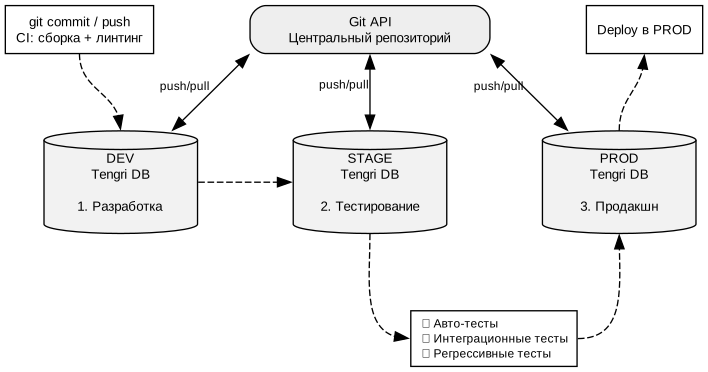
Tengri supports working with repositories in the Git version control system.
Support of Git allows to solve the following tasks:
-
Organization of efficient collaboration of analysts within a single installation Tengri
-
Managing the code base of notebooks Tengri from a central repository
-
Moving the notebook codebase between different Tengri installations via CI/CD pipelines
Workspaces and repositories
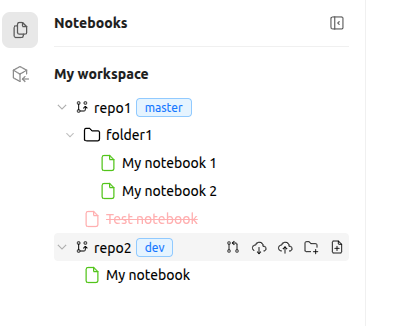
A workspace is the root element of a structure that consists of repositories. The active workspace is displayed in the left sidebar at the root of the tree with notebooks.
The notebook tree displays all repositories in the active workspace. For each repository, the tree displays the active branch and all of its contents.
Repository branches
For each repository, a default branch is set when adding it to the workspace.
The active branch is displayed next to the repository name. Clicking on the name of the active branch opens the branching menu.
Actions with branches:
-
Switch the current branch (similar to
git checkout) -
Create a new branch and switch to it (similar to
git checkout -b) -
Delete a branch (similar to
git branch -d)
Actions with repositories
Repository action buttons appear when hovering over a repository row in the tree.
Actions:
-
Merge the current branch into the default branch (similar to
git merge) -
Pull changes from the default branch into the current branch (similar to
git merge) -
Publish the current branch to Git (similar to
git push) -
Create a folder in the root of repository
-
Create a notebook in the root of repository
| When you create a folder, an empty notebook is automatically created within it. Folders without content are not supported. Deleting the only notebook from a folder also deletes the folder. |
Actions with notebook
The color of notebook icon in the tree reflects its current state:
-
New — created but not yet published to Git
-
Modified — published but has unsaved changes (draft)
-
Published — current version published in Git, no draft
Notebook and folder action buttons appear when hovering over a notebook line of folder line:
-
Publish — publish draft to Git (similar to
git push) -
Pull — pull the current version from Git into the draft (similar to
git pull) -
Rename — rename the notebook.
-
Delete — delete notebook (published notebooks are marked for deletion, unpublished notebooks are deleted immediately)
-
Restore — restore a notebook marked for deletion
Resolving merge conflicts
If a version conflict is detected when publishing or updating, a conflict resolution dialogue opens.
For each cell with a conflict, you must choose whether to keep your own version, accept someone else’s version, or merge both.

| Full commit history for all cells with the ability to roll back to previous commits is available in the History tab. |
Workspace and repository administration
Under the Settings > Workspaces & Repositories tab, you can manage workspaces and repositories.

Managing repositories
-
Synchronize — pull changes from Git into the default repository branch
-
Rename repository
-
Delete repository
After synchronization is done, statistics are shown: how many notebooks added, updated, deleted, saved with drafts.
Adding a new repository
Clicking on Add Repository opens the menu for adding a repository in which the parameters are set:
-
Repository Name — the displayed name of the repository
-
Repository Mode — repository connection mode
-
Local — create locally in the workspace directory
-
Remote — connect external repository
-
-
Remote URL — URL for `Remote' mode (HTTPS or SSH)
-
Default Branch — default branch (default
main)
In Local mode, the path is generated automatically: {workspace_dir}/{slug}.git. The pre-generated path is shown in the form when entering a name.